Sharing Server

alt=""

All educators in the Clarksville Montgomery County School System with an active MyLogin may access the district sharing/staff servers.

Accessing the Sharing Server

Steps for Accessing the Server

Keyboard Shortcut

On your keyboard:
Press the Windows key and the letter R.
Enter the server address to connect.

Map Network Drive

From the Taskbar

  • Use the Search option on your taskbar. Enter “map network drive”
  • Click enter
  • At the top, select Computer
  • Click and select “Map network drive”
  • Enter the server address
  • Check “Reconnect at sign-in
  • Finish
You will see the servers under This PC.

Common Server Address

Staff Server:  \\staff.cmcss.net
Sharing Server:  \\ic-files.cmcss.net\sharing

Reminders & Video Resources

*The server is only available inside the CMCSS network except for the Classlink folders.

*Accessing the Server Video Playlist

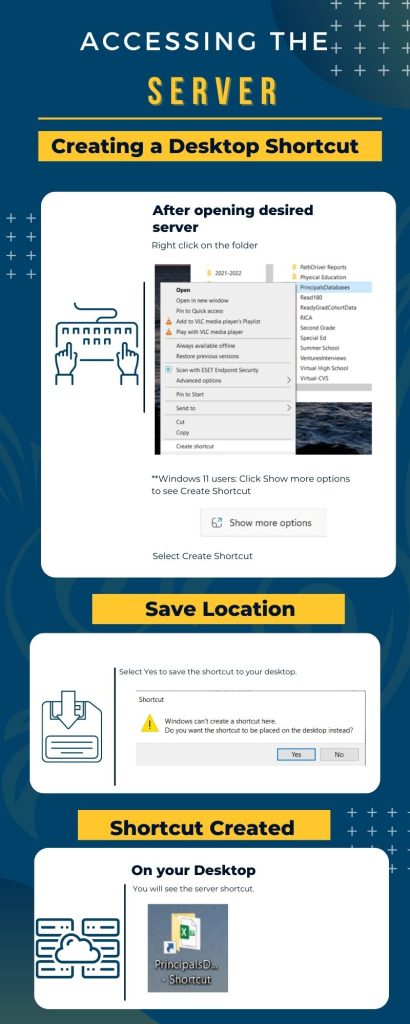
Creating a Desktop Shortcut

Creating a Desktop Shortcut Picture Instructions
After opening desired server:

  • Right click on the folder
**Windows 11 users: Click Show more options to see Create Shortcut.
  • Select Create Shortcut
Save Location
  • Select Yes to save the shortcut to your desktop.
On your desktop
  • You will see the server shortcut.

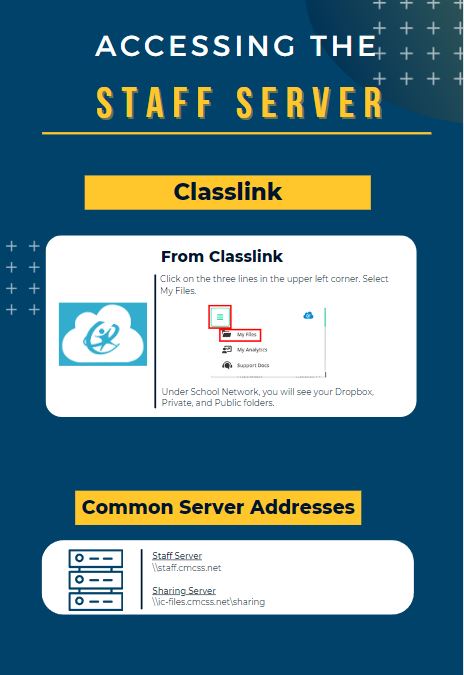
Accessing the Staff Server

Steps for Accessing the Staff Server
From Classlink:

  • Click on the three lines in the upper left corner.
  • Select My Files.
  • Under School Network,, you will see your Dropbox, Private, and Public folders.

Accessing the Sharing Server from Home

Access the Sharing Server using the same method at home as long as you are updated to the VPN. Follow these steps to ensure you are updated:

1. Click the “up arrow” in the lower right of your desktop.

Up Arrow

2. Look for the Globe icon.

Globe Icon

3. If you do not see the globe, run CUpdate.

CUpdates Icon

4. Right-click and select “Check for updates”. Once complete, Global Protect will install.

If you have any issues, please put in a Technology Work Order.