
The purpose of this page is to provide documentation and resources for reporting and working a discipline incident in CMCSS. This page does not provide details of how to handle a discipline incident. For questions on how to handle a situation, please contact your Level Director.
You must use your CMCSS Google account to access the videos and links on this page.
Incidents can no longer be created or edited in PowerSchool Incident Management. All new incidents must be created through Discipline and edits to incidents must be made through AdminPlus. All discipline related forms and letters can be printed from AdminPlus.
Learning Menu
Click the button below to navigate to that section.
AdminPlus Learning Essentials
- Dashboard
- Local vs State
- Duration Calendar
- Override Duration
- Action Attributes
- AdminPlus & PowerSchool
- Combining Referrals
- Bullying in AdminPlus
- Expulsion Process
AdminPlus Updates
Resources: Click the buttons below to view the resources. Please ensure you are signed into your CMCSS Google account to access the resources.
**NEW for 2026-2027**
OS dates entered in AdminPlus are now automatically applied to student attendance in PowerSchool.
Support Resources
Click the titles below to access the resources. You must use your CMCSS Google account to access.
Bullying Paperwork
AdminPlus Foundations
- navigate AdminPlus dashboard.
- understand the difference between local and state offenses.
- utilize the duration calendar to determine discipline dates.
- understand how AdminPlus and PowerSchool work together.
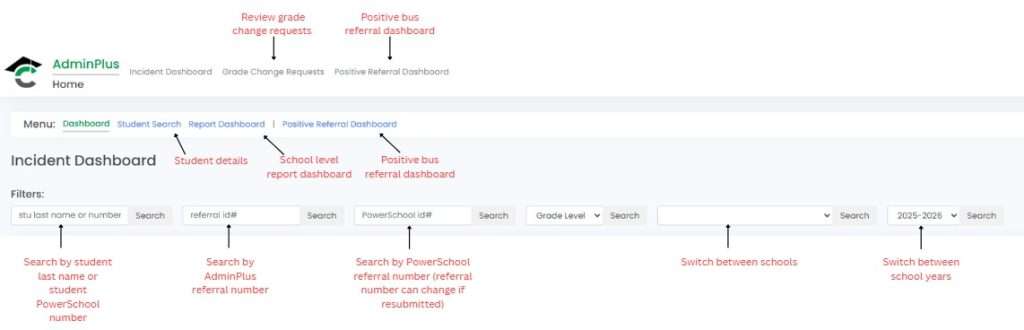
AdminPlus Dashboard
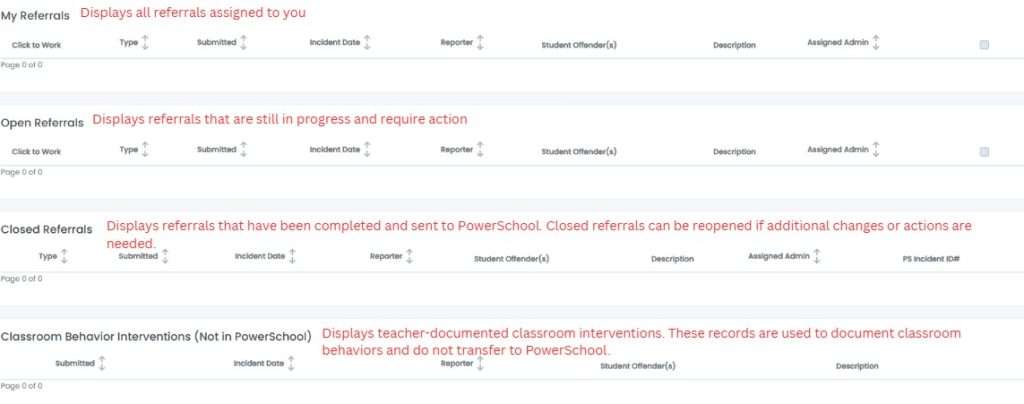
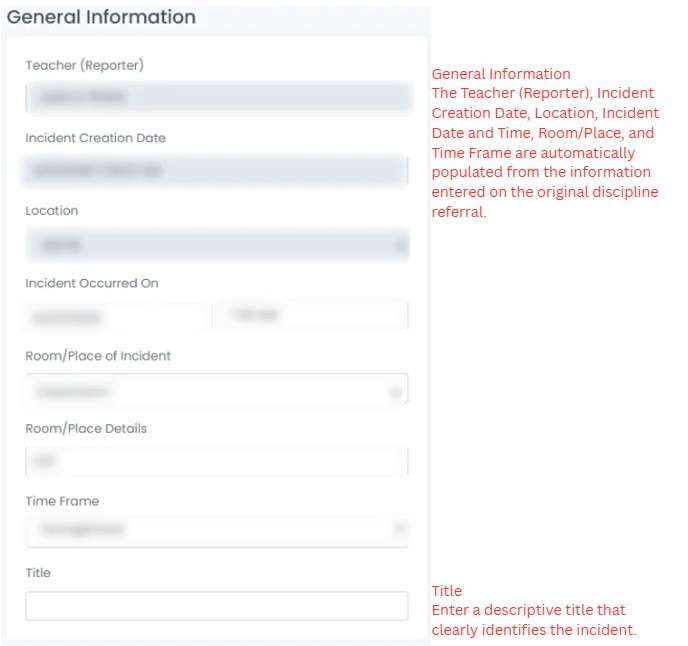
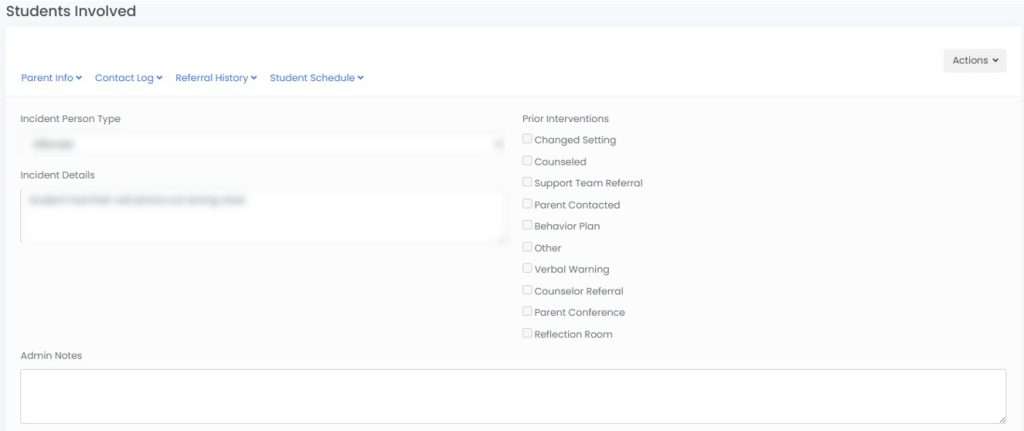
The right side displays all the students involved in the incident, including the offender, victim, and witness. For the offender, any prior interventions will be selected by the individual who created the referral.
Admin Notes
Enter Admin notes to document important details about the incident. These notes are reported in the Description field in PowerSchool.
Assign Behavior(s) and Action(s)

Duration Start – End (You MUST click APPLY)
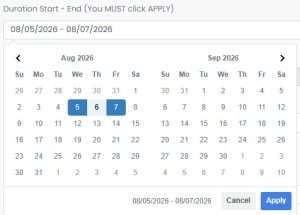
**NEW**
OS dates entered in AdminPlus are now automatically applied to student attendance in PowerSchool.
Action Attributes
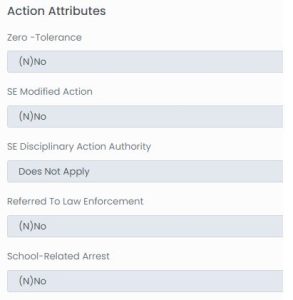
Zero-Tolerance – This is when a student is expelled from school for drugs, alcohol, assault of a teacher, etc. The zero-tolerance offenses are listed in the Code of Conduct.
SE Modified Action – Was the incident’s action modified because the student is a special pops student? For example, the student received an in-school suspension instead of an out-of-school suspension because of their disability.
SE Disciplinary Action Authority – Was it the IEP team deciding to modify the action?
Referred to Law Enforcement – Did the SRO arrest or make a report of the incident?
School-Related Arrest – Was the student arrested because of the incident?
Submitting the Referral

AdminPlus does not automatically save your work. Select Save Progress to save your changes. If you reopen a referral to make updates, be sure to save your work before leaving the referral, or your changes will be lost.
Send Back to Teacher – Select Send Back to Teacher when the referrals requires changes that only the individual who entered the referral can make, such as adding or removing students or requesting that the referral be deleted.
Done – Send to PowerSchool – Select Done – Send to PowerSchool to submit the referral to PowerSchool. After the referral is sent, allow approximately 15 minutes for it to become available for editing.
Override Duration

We’ve added a new “Override Duration” button in AdminPlus for teacher referral actions only when the duration is 165 days or more. Access the Override Duration Instructions.
Key Takeaways
- AdminPlus does not automatically save your work.
- Review behaviors and actions carefully before submitting.
- State behaviors require a corresponding State action.
- Enter the suspension action before the expulsion/remandment action when using Override Duration.
- Allow approximately 15 minutes for referrals to become available in PowerSchool after selecting Done – Send to PowerSchool.
You select Done – Send to PowerSchool and immediately realize the duration dates are wrong.
What is the best course of action?
A. Recreate the referral in the Discipline app and process it again in AdminPlus.
B. Do nothing. The incorrect dates will not matter.
C. Immediately go to PowerSchool and edit the dates.
D. Wait approximately 15 minutes for the referral to sync and become available for editing in AdminPlus.
Explanation:
After selecting Done – Send to PowerSchool, allow 15 minutes for the referral to sync and become available for editing.
Referral Management
- combine multiple referrals using the correct workflow.
- document and manage bullying incidents using district procedures.
- follow the appropriate workflow for referrals involving expulsion.
Important Reminders
- Referrals may only be combined when the same students are involved.
- Bus referrals and classroom referrals cannot be combined.
- Both referrals must be open before they can be combined.
- After combining, one referral automatically closes. Continue working only in the remaining open referral.
Bullying in AdminPlus
The INS-F111 Bullying Form is fully integrated directly into AdminPlus!
Instead of completing the INS-F111 form separately, you can now fill it out within AdminPlus and print all necessary forms from the student options. When selecting a Bullying/Harassment behavior (whether for the victim, unfounded, or founded), the INS form will automatically appear at the bottom.
This update aims to simplify the process and improve efficiency. If you have any questions or need assistance, please don’t hesitate to reach out.
Bullying in AdminPlus Slide Deck
Expulsion Process
Access the Virtual Alternative Programs Site.
Knowledge Check
A student makes a series of poor decision throughout the day. Multiple teachers entered discipline referrals. As the administrator, you want to assign one discipline action for the incident.What is the best course of action?
A. Assign the same discipline action to each referral.
B. Close two of the referrals and complete only one.
C. Combine the referrals into a single referral, then enter the discipline action on the remaining open referral.
D. Delete the duplicate referrals.
E. Enter the discipline action on one referral and add the Multiple Referrals action to the remaining referrals.
Explanation:
Preferred: Combine the referrals into a single referral, and enter the discipline action on the remaining referral and submit it to PowerSchool.
Alternative: Enter the discipline action on one referral and add the Multiple Referrals action to the remaining referrals.
Error Notifications
If you have questions that are not addressed in the training materials, please email [email protected].
